Scanning
Regular Scanning
The copiers located in the mailrooms of the Geology or Chemistry building can scan documents to a PDF or image file and send it via email. It can scan multiple pages either using the automatic document feeder or by scanning the pages individually. Email Todd Karwoski at karwoski@umd.edu if you need assistance.
Thin Section Scanning
There is a photo scanner available for scanning thin sections or 35mm slides and negatives. It is located in the computing lab in CHM 1215. All members of the department should access, but email Todd Karwoski at karwoski@umd.edu for access or if you need assistance.
Large Format Scanner

We have a 42-inch wide sheet fed map and poster scanner. Contact Todd Karwoski at karwoski@umd.edu for access.
Scanner on BMS HP Printer
The HP LaserJet Pro MFP M521dn also includes a scanner to send files as PDFs. Instructions for its use is below:
- Place the item to scan on the scanner platen or in the automatic document feeder on top.
- From the main menu on the display, touch "Scan".
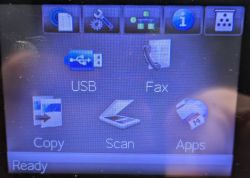
- Touch "Scan to E-mail" from the list of options.
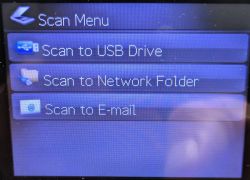
- Touch "Send an E-mail" from the list of options.
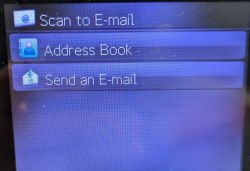
- Touch "BMS Scanner" as the email sender.
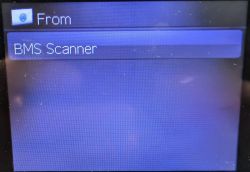
- Touch the "To:" field to select the recipient(s) of the scanned documents.
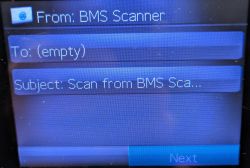
- Select the names of the email recipients for the scanned document. You can select multiple names from the list or tap "New" to manually enter an email address. The box next to the name will be highlighted to show it's selected. Tap "Done" when finished.
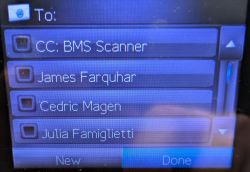
- Touch "Next" to view the settings for the scan. Touch "Settings" to change any of the settings.
- Touch "Scan" to start scanning the documents.