Accessing computers on the policy-based network remotely requires utilizing the UMD jumpbox for SSH connections and RDS gateway for Windows Remote Desktop connections.
Before logging into either system, you need to be given permission. Send an email to Todd Karwoski at karwoski@umd.edu to request access.
NOTE: The Global Protect VPN is required to access computers remotely, regardless of whether you are on campus or off campus.
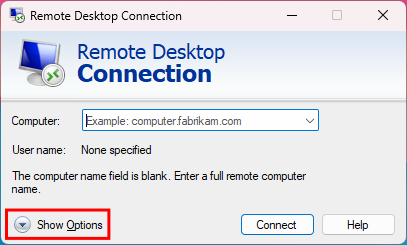
By default, the window is compact. Click the Show Options button in the bottom left to expand it.
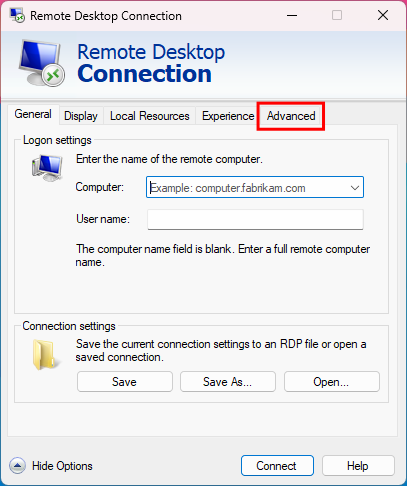
Click the Advanced tab.
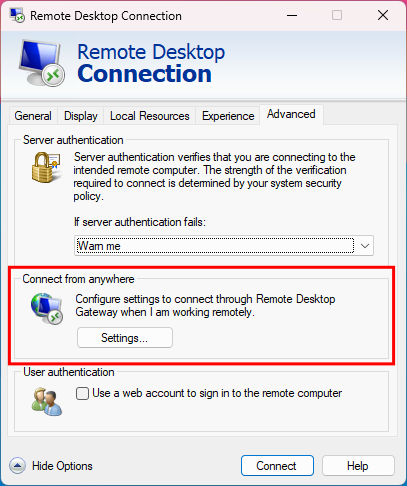
Click the Settings button in the Connect from anywhere section.
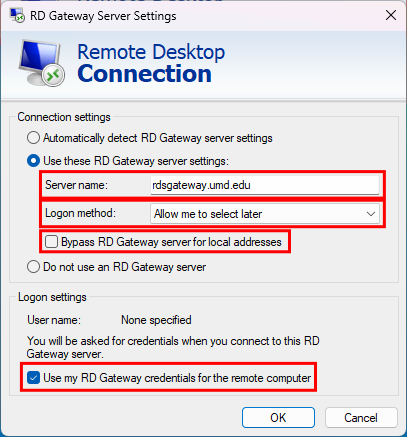
Enter the following information into the RD Gateway Server Settings window that appears:
Check the box to Use these RD Gateway server settings
Server name: rdsgateway.umd.edu
Logon method: Allow me to select later
UNCHECK the box next to Bypass RD Gateway server for local addresses
You can check the box next to Use my RD Gateway credentials for the remote computer if you don't log into remote computers with accounts other than your own. Otherwise, it will always use your UMD account to try logging into the remote computers and not ask for your login.
Click OK to save the settings and go back to the main window.
Click the General tab.
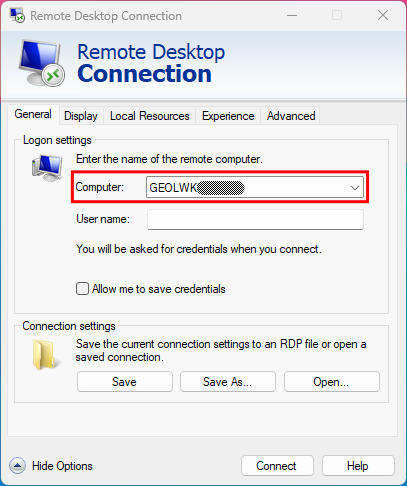
In the Logon settings section, enter the hostname of the computer you want to connect to.
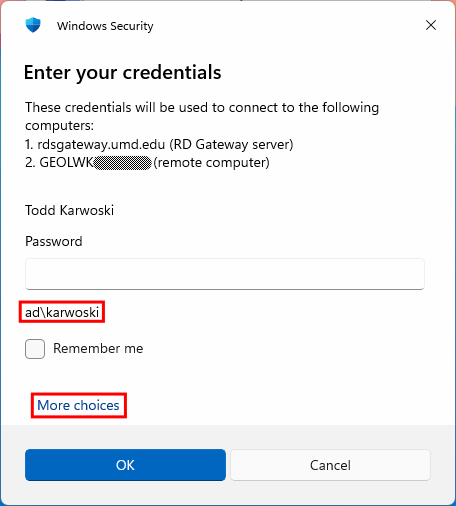
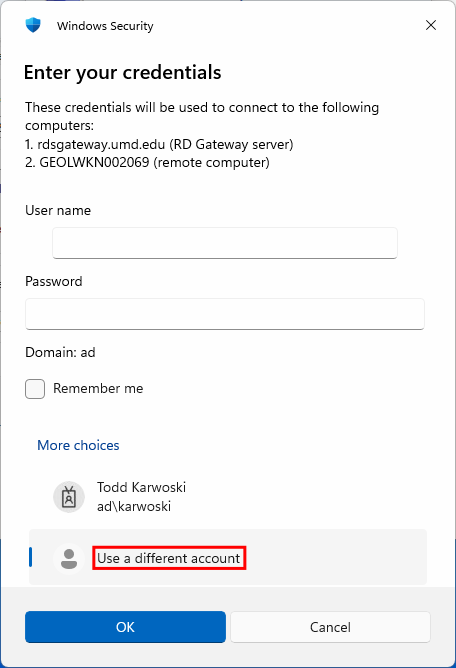
When you click Connect, you will see this login window. If you checked the box to use the RD Gateway credentials, this window will let you know it's going to use your login details for the gateway and the remote computer. If you didn't check that box, you will be asked to log into the RD Gateway server first and then to log into the remote computer. Note the username that is displayed. The username should be ad\DIRECTORY_ID. If not, click the More choices link and then the Use a different account button. The User name field is now blank and you can enter the correct username and password to connect.
Click OK and it should log in to the remote computer.